Posts

Showing posts with the label Tech Tip

Tech Tip: Google Define and Etymology
Image
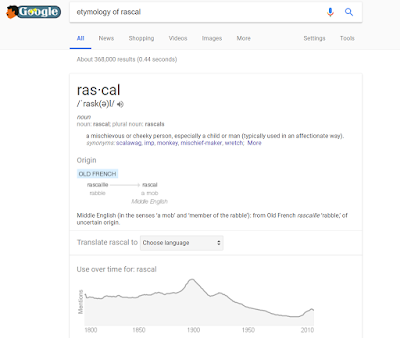
For my final Tech Tip, I decided to check out Google's define and etymology look-up tools.  I know what you're thinking and it's probably "Big surprise, linguist nerd" with a sarcastic tone and maybe even complete with an eye roll.  Yes, I love all things linguistics, so of course I am taking every opportunity to talk about it.  I decided to focus on using Google's etymology feature and sent out a message to a few friends for ideas of words to search.  I received too many awesome words so I did my top 3 favorites. The first one I tried was 'rascal' because the person that suggested it wondered if it was related to ' Raskolnikov '.  Unfortunately, I couldn't find any evidence suggesting the word came from the character's name and my research came up with the result that they are unrelated. Screen shot of Google search results for 'rascal etymology' The second word I looked up was 'gargantuan.'  I was surprise...
Tech Tip: Word Counter for Chrome

I followed the steps here for installing a Word Counter for Chrome yesterday. I have already been using it constantly for things like my blog posts, comments, and other assignments online. This tool is so handy for typing up things in Chrome that you need to know the word count for.  Before adding this extension, I would type my posts and comments for this class in a word document and then paste over, so that I could have a word count.  This tool is so useful and I am now obsessed with knowing my word count when typing. Another neat part of it, it lets you know the reading level of what you wrote.

Tech Tip: Meme Generator

Image
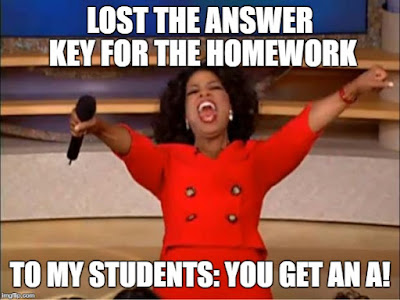
Meme made by Caitlyn Buckley at ImgFlip.com Story: I had my students do some extra practice problems last week and turn it in for a grade on Friday.  Somehow, I've lost my copy to the answer key.  I have too much homework of my own to solve all 75 questions and make sure they're correct, so it is now for a completion grade.  

Tech Tip: Blogger Profile

I decided to make my profile visible on my blog.  You can see it in the side bar on the left side (when using desktop view).  When you click the link to my profile, you can learn a little more about me.  It shows some personal stuff like where I am from, what town I live in now, and a recent(ish) picture of me.  I decided to add this so that readers can get a better sense of me.  Often, I feel like online blogs and such are very hard to make a personal connection with.  How do you relate to someone you only know through words on a screen?  I hope adding a little more about me helps people have an easier time feeling like they are reading from a real person.

Tech Tip: Canvas Profile

Following the online instructions , I updated my Canvas Profile.  I decided to add in a short little biography stating what my major is and what college I belong to.  I also updated my profile picture to be a more updated photo of myself.  Several of my professors already require us to use a photo for our profiles because they think it makes the Canvas Discussions a little more personable.  A few of my classmates have been giving me a hard time because my old photo had my hair still long and with my old glasses.  My new photo is much more like my day to day appearance.  While editing, I also discovered how to link my Google account to Canvas.  This allows me to submit assignments straight from my Google Drive without the hassle of downloading them to whatever computer I am currently using.  I often start my papers on one of the computers in the library on campus and just save it to my Google Drive so that I can finish it from wherever I want....

Tech Tip: Google Reverse Image Search

Image
Have you ever found a picture of something and wanted to find the source or even a better quality version of it?  Well, I definitely have.  All the time, I find logos for things that I can't remember what company they are for and it drives me nuts.  I also get really frustrated when I look through my pictures after visiting a museum and find that I forgot to take a picture of the information card for a piece.  Then, I'm just stuck trying to recall who did the piece and what it was called.  Well, Google Reverse Image Search saves the day every time.  This is something I used to use all the time and then I kind of forgot about it.  When I was reading through the options for Tech Tips, I got so excited when I saw this as an option.  I had completely forgotten how to do it and the instructions were linked right there.  I went to the Gilcrease Museum in Tulsa a few weeks ago (I highly recommend it, by the way) and I took a picture of an awesome pa...

Tech Tip: Google Timer

For this week's Tech Tip, I'm discussing the Google Timer feature.  Now, I've actually been using this for years, but it is so wonderful and easy to use, I think everyone should now about it.  To use it, just open a tab, go to Google, then type in "set timer for."  Google brings up a little digital timer than you can fill in the minutes and seconds for.  This is great for things like blocking studying time.  During finals season, I study one subject for about two hours and then switch to another for two hours.  This helps me not get bored and burned out on one subject while also making sure I end up studying for every class.  I just set the timer for two hours in a tab and then in a new one until it goes off.  If I close the tab or window before the timer has run out, it prompts me to make sure it wasn't by accident (usually it is an accident).  If you ever use Google Assistant, it is pretty much exactly like that timer.  I also use this...

Tech Tip: Canvas Mobile App

For this week's Tech Tip, I decided to check out the Canvas App a little more.  I downloaded the app a couple of semesters ago and have used it primarily for canvas messages.  I occasionally will look up posted grades and download an assignment if I forgot my laptop for class.  Today, I checked out the Canvas Student Android Guide  for some tips on what else the app is useful for.  There, I discovered I can use widgets with the app! If you don't know, widgets are little things you can place on your home screen on an android phone that updates every couple of minutes.  I currently use one for weather that updates every half hour with the current conditions and another that has my monthly calendar of events.  I tried out the "To Do" widget for the Canvas App and already know I'm going to use it all the time.  It gives me a nice little check list of all the assignments I have left to do.  It color codes each class, gives a symbol with the type o...